This may well be the most important behind-the-scenes video we’ve made to date. Not because it’s fancy or sexy, but because it covers arguably the most essential information on a set of topics that every photo and video person should understand: workflow, storage and backup of your precious images. This video covers all the ins and outs, the theory and the details of our complete photo and video workflow from capture to archive and everything in between. So whether you’re a seasoned pro, an aspiring amateur, or just starting out in photography or video we’ve worked hard to make this worth your time.
While there is no “right” digital workflow, ours has been shaped in the professional environment over the past 10 years. More importantly the techniques we use, the gear, the methodology, everything discussed herein been time tested and entirely scalable depending on budget, experience and where you’re at personally in photography and video, wheter you’ve got millions of images or just hundreds. Ultimately, this is a template, a summary of our experience piled into one video and one blog post. Photography, video, and filmmaking are my passions, but they’re also my livelihood, so–as you’d imagine–I take workflow, storage and backup solutions very seriously.
There are, of course, a number of ways to do this stuff, but several key concepts remain consistent no matter what your level of experience. In recent years, workflow, storage and backup has probably been the most requested topic I’ve been asked to cover…and rightly so. It’s important. While I generally don’t actively ask, I’m going with a different approach on this one. Since I’m hoping to re-ignite the dialogue on this entire subject, I would love for you to embed, share, retweet, re-post or share this with your friends. Arguably these principles–especially the parts on storage and backup of data, apply to everyone, not just us photogs. It’s my goal that this becomes a living reference, a launchpad for further discussions on this sorta nerdy–but important–topic. I fully expect there to be questions, counterpoints, and alternative views. It’s all welcome. The comments section of this post will be another place for great information and discussion.
In addition to the video above, there’s a HUGE RESOURCE of written workflow and backup after the jump. You’ll find additional images, a downloadable pdf, even B&H links to all our workflow gear after the jump, so please dig in…
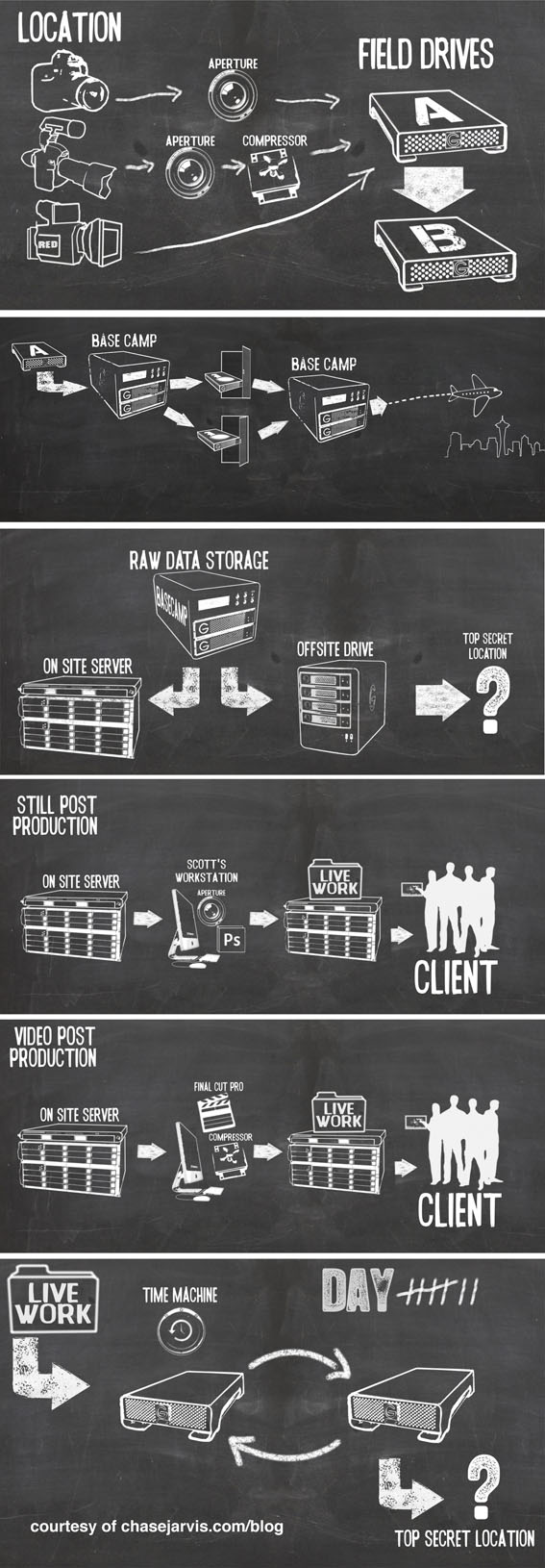
Here is a downloadable pdf of the above image for your later perusal. Enjoy.
STORAGE AND BACKUP theory. Some general theory behind backing up your work.
1. Make your work ORGANIZED. You should be able to easily navigate, save, and locate files an organized folder structure. For starters, I recommend what’s commonly called reverse-date naming, combined with some convenient, recognizable text. For example, if I shot images for an Apple campaign today, June 22, 2010, on my #1 Nikon D3s camera, I would rename the images using the convention 20100622_Apple_1_[camera file name] or similar and put them in a folder referencing that info as such. We use Aperture to rename our stuff, but there are lots of software options that do this for you. The important takeaway from this point is whatever you do, make it organized. That goes for files, folders and overall folder structure. Be sure to AVOID folder names like NEW PICTURES, or YESTERDAY’S PARTY.
2. Choose the right STORAGE MEDIUM. Use portable, external hard drives and–perhaps even RAIDed storage–at your home, office or studio to store your work. I do not use DVDs or CDs. There is all sorts of data that says use this or that or gold plated whatevers. I find that research incomplete and flawed. We use hard drives. And LOTS of them. We love G-Tech. They make great, affordable drives in a range of sizes, from 256G to full enterprise quality RAIDs. Note that we chose G-Tech from a variety of possible partners because of their high quality product and company commitment to the pro photo and video space. We now work with G-Tech helping test their gear and ideas, so consider that within this context, but be aware that this comes after having used nearly every manufacturer’s product at some point in the past . G-Tech is our choice, but you can feel reasonably comfortable using most any name brand hard drive. As a general rule, if you can afford it, purchase more storage than you think you’ll need. Also note that, relatively speaking, you’re purchasing according to economies of scale. Thus, a 200GB hard drive may cost $100, or $0.50/GB; whereas 500GB hard drive may cost $150, or $0.30/GB.
3. Keep a CLEAN COPY OF THE ORIGINAL DATA. Before uploading your images into some proprietary viewing software I recommend copying the original data to a sacred place, in a sound file structure, where it’s not altered. I strongly recommend this is a separate drive from your computer’s hard drive. Upload or copy images onto your computer’s hard drive or into your preferred viewing or editing software for manipulation or reference ONLY AFTER you have a clean copy saved (and never altered) somewhere safe.
4. Make it REDUNDANT. In order for your backup protocol to be effective, it’s absolutely crucial that your files be in at least two different locations as soon after creating the images as possible. Creating two copies of the original data is the most important step in backing up data. However unlikely, hard drives and memory cards do sometimes FAIL. Don’t subject yourself to having only one copy of your precious photos or videos. It’s not worth it.
5. Keep ‘em SEPARATE. Remember why you keep originals of your will in the bank’s safe-deposit box and copies at home? This is a similar concept. Now that you’ve got two separate copies, on separate drive, with the exact same data on them, do your best to keep them separated. Try keeping one at home and one at the office. Or what at your house and one at your moms. This is the most far-reaching component of the backup protocol and protects you from the more extreme events like theft or fire. Statistically, it’s unlikely that this will happen, however it’s the best way to truly protect yourself from catastrophic loss.
6. Use DILIGENCE. A backup strategy is only effective if you can maintain it. Even if you’re not a pro photographer, keeping extra copies of your files according to a well organized, established protocol will help keep your precious files safe for the long haul.
SOME STORAGE AND BACKUP SPECIFICS:
ON SITE PORTION OF THE SOLUTION: Our studio runs a network of many computers linked together at a hub which speaks directly to a central file serving computer. This “server” can be any computer really, in our case it’s 2 Apple X Serves. The server’s job is to retrieve files for the rest of the computers on the network. This server’s external hard drive is the focus of this post. In your case, this might be just a single drive, or a small RAID solution you can buy from most electronic stores. In our case, we upload all our data onto G-Speed FC-XL Raids by G-Tech. This is a giant hard drive (64TB) that has written data seamlessly over a number of different drives in an array. This is fancy terminology that basically means that the drives all sync together to act like one drive, but in reality they’re separate drives arranged in such a way that if one drive fails, the server can identify it and, upon replacing the defunct drive, re-create data that was on the dead drive. It circumvents the horror of all your data living on a single bulk hard drive and failing. By spreading the data over several drives, you’re minimizing your risks. If one drive fails, you’re covered; and theoretically, multiple separate drives are far less likely to die at the same time. Redundancy is the key. Whether you’ve got an enterprise quality solution, or even just a two hard drives daisy-chained together, make it redundant…
OFF SITE PORTION OF THE SOLUTION: Now, the RAID takes care of any on-site single drive failures. You’re backed up at the studio. But what about a fire? What if the entire building gets crushed in an earthquake, RAID and all? If you take your photos really seriously–professionally or as an advanced amateur, you should have at least one copy of your data at a secure location off site. In our case, we use raided G-Speed 8TB drives for all data. We do NOT recommend DVD’s or CD’s. They are more volatile than hard disks. The data for all jobs gets put directly onto these G-Speeds and gets archived off-site. Thus, we’re backed up in case of drive failure AND in case of a dramatic catastrophe. Generally speaking, we’re betting, as all backup systems do, that our redundancy measures will out perform even the most disastrous situations that occur.
OTHER DATA? Note: The above is our solution for the RAW photo data that is created in intense bursts of large piles of data (shoots), not usually a small daily trickle. All our images live in their original, unaltered state on the RAIDs and off site. But what about client work, adjusted image drafts, delivered images, post production in progress, invoices, production docs, etc, and all the other data that gets changed or updated on a day to day, “trickle” basis? We call this our LIVE (rhymes with hive) WORK and it’s handled in a slightly different manner. It still lives (in a separate partition) on our RAID, and thus had built-in, on-site redundancy, but to remedy the off-site portion of the equation we use Apple’s Time Machine software to write a copy of this portion of our data onto two hardrives that are in rotation, while one is on-site backing up the data every night, the other is offsite, secure. Then, every 7 days, we swap out the drives. What this accomplishes is important and based on the same basic principle of redundancy that we use for storing our raw photo data. If the studio gets firebombed, then we still have all our raw, untouched data offsite and also all our LIVE work offsite…the most we’d be out in such a catastrophe is 7 days worth of pixel pushing.
Also, we backup each and every workstation in our studio with its own, separate hard drive using Apple’s Time Machine. It writes a backup of your computer every hour for 24 hours and every day until the drive is full. As a rule of thumb, the size of the Time Machine drive should be twice the size of your computer’s hard drive. These backups are important if you have a computer hard drive failure OR if you errantly delete a file. Time Machine has a nifty interface where you can go back into various earlier ‘snap shots’ of your harddrive and find that file you accidentally deleted. Don’t rely on this as a strategy for saving data, but in a pinch this can be a life saver.
Lastly…THE GEAR LIST
We know you love it, so here ya go:
- Nikon D3S
- SanDisk 32GB Extreme Pro CF Card
- Apple MacBook Pro 17″
- SanDisk Firewire 800 Reader
- Apple Aperture 3
- G-Tech 256GB G-Drive Mini SSD
- Apple Final Cut Studio
- Apple MacPro Desktop Workstation
- G-Tech 4TB G-Safe
- Apple X Serve Servers
- G-Tech G-Speed FC XL RAID
- 8TB G-Speed ES
- Adobe CS5 Master Collection
- G-Tech 2TB G-Drive
Thanks very much for staying with me for this whole thing. Hope you find this to be a great resource. If so, please share it with your friends. Also, please feel free to subscribe to my blog, Facebook, Twitter and YouTube channels if you like anything you’ve read here. Feedback and dialogue is always welcome.







NICE! Thanks for posting Chase!
Wow! chase i am going to read this twice !! neat article thanks for sharing.
whoaaaa, finally
finally a really well-made and comprehensive documentation of a professional workflow!
Thanks a lot!
Awesome! Thanks for the behind the scenes workflow!
Wonderful video. I aspire to run a 64 tera-byte hard drive some day.
Really good information! I like how you think BIGGER! No DVD or Online backups, huh? Just too much space. Crazy cool. Very inspiring.
Thank you so much for taking the time out to make this video and post. I am looking to dial in my work flow over the next month or so and this is a great read. With producing videos and youtube and other projects and also stills work flow and back up has become more and more important to have managed right.
Thanks
Rick
Another great resource for the uninitiated is http://www.dpbestflow.org/
Yes it is!
Couldn’t have said it better! Redundant copies with off-site storage is key. This is exactly how I do it as well!
Good to hear that you have offsite and arn’t relying solely on RAID. I hear so many photographers treating RAID arrays (drobo f.ex) as a backup solution but what if the array controller fails? They really need a second backup, and offsite is ideal.
I’d also recommend testing the backups ever month or so, just to make sure that what you think is archived is really there.
Holy moly! a LOT has to go wrong before you guys willl lose some data!
Thanks for the info.
Very informative and inspiring.
You guys rock as always. How do you find the time to do all these behind the scenes video, plus your cool shoots all around the world, your live interviews and all that?
Whatever you’re taking, I want some please…
Cheers.
Thanks for sharing – awesome info – JUst curious what kind of data storage budget you guys have?
That is some monster workflow. I’ve noticed in the recent years PhaseOne is getting into the digital teching business, with establishing courses and certificates. I’m not endorsing any of it, but curious to see where this branch of production is going. Maybe it’ll be treated like the old darkroom masters. A skill acquired from experience, not paper. Digital workflow isn’t something being taught at Art Center, Pasadena … as far as I know. Not sure about the other commercial art schools either.
This seems to be up in the air.
Have a look at http://www.carbonite.com/ they have saved me a few times the last year (yeah i have a tendency to loose my hardware
And also http://www.dropbox.com for quick file dumps
Thanks for a great presentation!
Chase!
Awesome post. Thanks so much! It was great to see how you back up everything and how important that is to do. Definitely an eye opener. Quick question. Which external microphone do you typically use for your D3s. I have one as well and LOVE shooting video, but am not quite satisfied yet with my external mic. Thanks so much!
Nate
We use the Rode Stereo VideoMic. It’s a bit on the pricey side, but well worth it: http://bit.ly/b6dvvd
Dang, solid video on a complex subject!
This might be outside of the context of the post, but how do you handle data that comes along for the ride so to speak, namely the Aperture catalog. It looks like you are potentially creating “live” data in the field with your initial edits/selects.
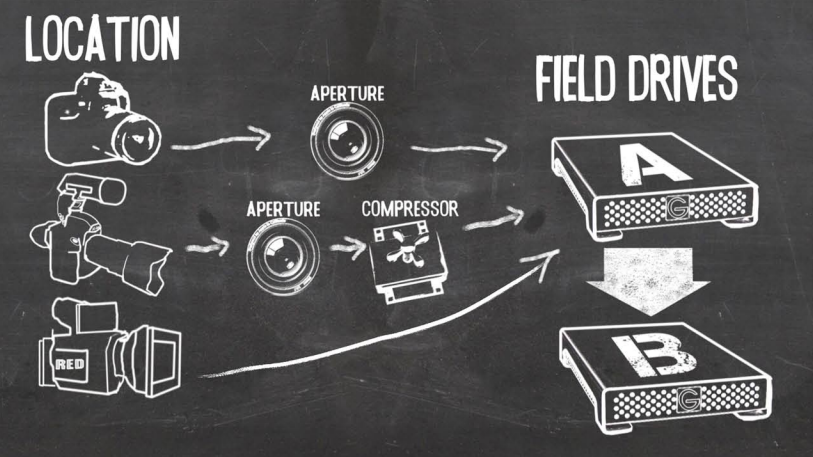
Also, I’m assuming Field drive A & B are for redundancy and once they are onto the “BaseCamp” drive, A & B get wiped and go back into the location rig.
yes I have the same question
Hey Chase,
Are you guys putting these videos on your Podcast anymore? I like to watch this stuff when I get free time from my iPhone so it’s handy to have it sync’d there ahead of time.
Cheers,
David
David,
This will definitely be available as a podcast in the next day or two.
Great post and invaluable to all photogs and vide guys out there. I’ve been refining my workflow the last few years and worked in IT for 8 and thought I had everything covered, there are some nice steps in your workflow which will help me tweak mine further.
Thanks for all your guys hard work.
I was wondering, are you using a server farm for your off site back-up? I know in larger cities there are places that rent space on their servers. Off site backup has to be the hardest to figure out especially if you are dealing with lots of data.
This post couldn’t have come at a better time. I just filled a drive and I’m rethinking my whole editing and back up WF.
Cheers!
PS, DUDE! You’re putting Job’s kid through some major Ivy League schooling with that there set up lol
David,
We’re using raided hard drives as our offsite solution, the server farms have proven impractical for us due to the volume of data and frequency with which we need to get stuff offsite.
Cheers!
Great stuff. For off-site storage I would definitely recommend tape backups, possibly LTO-5 (1.5TB native 3TB compressed capacity).
Although tape drives are relatively expensive, tapes are still considered to be more reliable for off-site storage than disk drives.
The recording industry reported several that several projects experienced fatal data loss in the past, trying to recover data from disk drives sitting for a few years in safes. It was recommended that drives used for archiving purpose should be connected to a computer, powered up and be used a bit just browsing through directories, copying off some files randomly at least once a year.
It is difficult to predict how newer generations of hard drives react to years of “hibernation”, but tapes with verified backup have an excellent track record to safely store data.
One should also move archived data from any storage device when there is obvious change in technology (e.g. from ATA drives to SATA, from DLT or other types of tape formats that become obsolete).
Incredibly helpful and informative post. Thanks so much for this.
killer post dude…
sexy
Thanks for such a detailed post Chase. I am someway there in my backup strategy having fallen victim to data loss last year.
On import I rename files on a date_client basis as you suggest and they live in a folder on a an external HDD dated by year.
Processed files are stored in a similar manner in TIFF format. Everything is backed up nightly to a Drobo. Everything is then backed up concurrently to an online backup service.
The only thing I don’t have employed is your suggestion to run Time Machine backups but I’ll correct that asap!
It’s not an enterprise class solution but it works pretty well and it’s saved me a few times.
Paul
Well done and easy to understand… there is so much out there to try and filter through, and even though we aren’t on your level (not even close), this system is totally scalable. Thanks for laying it all out there for us!
This is probably my favorite, most helpful video you’ve ever produced for us chase! thank you so much.
Thanks for posting the workflow video…awesome stuff!
Thanx for explaining the difference between the RAW back up and the LIVE back up, that was the most helpful to me.
Great info Chase. I’d love to know what hard case you are using for the macbook pro in the beginning, with the field drives and card reader attached.
James,
That’s the Pelican 1490 case with adhesive velcro used to mount the drives and card reader.
http://www.bhphotovideo.com/c/product/200310-REG/Pelican_1490_003_110_1490CC1_Computer_Case_with.html
Good to see a decent strategy (as an IT I usually cringe at how people do backups)… The only point I ould like to see addresses is archival storage vs. just a back but most of us ignore that issue.
Now for the critical question: So is the top secret offsite location under your bed at home or in the garage?
Excellent video. Excellent message. Well done!
Instead of the RAID 1 drive demonstrated, I’ve been using the Western Digital My Book with two 1 TB drives. Looking to upgrade to a 4-bay Drobo with 2-4 2 TB drives.
I always wanted to know how you save your photos to two drives simultaneously when you are importing from the CF card. Is that an option in Aperture or some other way? (most software only allows saving to one source) Thanks!
Matt,
The Aperture 3 import dialogue window allows you to select a primary and secondary location for the import. This is fantastic because you can rename and apply metadata and have the data written to two drives at the same time.
Cheers!
I’ll check it out, thanks for the reply! Cheers-
Lightroom 3 has the ability too to copy to a second location. Its in there import window on the right. Its the second option from the top.
For in the field quick downloads and backup, I run Photo Mechanic with two Lexar Pro fw card readers. You can choose two download sources as well and it’s really fast.
Hi Chase, Scott and everyone else. I was wondering how you connect your drives to the macbook on field, do you use a hub that goes to the FW 800 slot och USB ports? what kind of hub do you use in that case?
Scott,
If I recall right the last post about workflow and backup strategy some time ago, it is critical to have a clean copy of the cards first, just done by OS copy-pasting, without any software involved (that could be buggy). Using Aperture 3 for downloading and even writing the second copy as “backup” sounds like quite a risk, no?
Nikon Transfer does this also
Very helpful and informative post!
I’m a web designer and am just getting into photography & videography so this post provided a lot of insight as to scaling this work flow method to meet my needs.
Wow, great video Chase. Thanks for putting that together. Your work flow is over the top compared to mine.
Wow.
Incredibly. helpful. Thank you so much for the effort!
Thanks Chase. Made me feel happier as mine is a “poor man’s version” of yours (ever since I read “The DAM Book” which seems to be “the Bible” on this topic).
My question is:
If you had to do this again would you still do Apple X-Serve or would you use some other technology/OS? (just curious as a former IT geek who is now an aspiring professional photographer)
Frank,
The Apple XServe has been a good match, and the ability to use Time machine to backup certain parts of the server works very well.
Cheers
I have a few questions on how you can backup portions of the server. I am outgrowing my solution rapidly, it’s a modified version of what you have, just less drives more impromptu purchases… But all apple oriented.
How do I get introduced into a server setup, and then backing that up? I have a small studio in chicago that I manage, one Mac pro, iMac, MacBook pro, mini + 21TB of common data only shared via network, plus all the gear iPhones iPads iPods flying around. In my mind I would house all the RAW data to the server and whoever is editing or accessing the content pulls the raws to their station to manipulate and then save to Live Work. … Mind is beach balling now…
Great Video, wow that’s alot of steeps when you’re a pro, Now I just need to take the basics and convert into a poor mans solution/Entusiast photographer.
I have been looking at External harddrives for some time now, and I just can decided, the G-Tech looks nice and all, but is way to much money for a poor man
But again great video.
Good stuff as usual.
As for the backups. Does your “Offsite drive” get cycled like your “time machine drive”.
Can you speak about the “Top secret location”? Does all that data get transferred to tape drives? Is it a third party? What about a cloud based service?
Ken,
The offsite drive for RAW data comes in to the studio every time there is new content added to the server. Each GSpeed drive lasts for quite a few shoots, and when we fill one up, we add another drive to the offsite collection. Periodically (twice a year) we plug in and test all of the archived offsite drives.
How you test the archived offsite drives? Just randomly open some images in PS or is there a software to do this?
Thank you, thank you, thank you for posting this. I’ve struggled with with following a set workflow for far too long. This is just great.
Thanks again!
The biggest thing I’m curious about is the long term after the fact storage archiving process. I keep files on drives for archiving in two separate locations, but using Aperture 3 I haven’t quite decided on an export solution. Do you utilize it’s vault feature or just export and delete projects? Would you mind sharing a bit of that process? Getting it out and off of Aperture, etc…
Thanks!
Jamie,
We create a new Aperture library for each project we shoot. These are stored in the Live Work area on the server and copied to a workstation to be worked with, and back to the server for storage. The photos are stored in the RAW area of the server and are not moved at all. Aperture references the files that are stored in the RAW area. This way we have the RAW data completely unaltered on the server and on our offsite drives, and we have the Aperture Libraries and any exports (tiffs, psds, jpegs) in the live work area of the server and the live work offsite drives. We do not use the vault feature of Aperture because the image files are not stored in the Aperture library, and because the Aperture library itself is backed up by the rotating live work backup drives.
“We create a new Aperture library for each project we shoot.”
You must have a lot of different libraries, and I’m wondering whether this makes it difficult to search for images after a project is completed and moved to the server for storage. I understand that Aperture 3 makes it easier to work with multiple libraries, but does it allow you to search for images across multiple libraries? Or do you use another method to search your archives for old images?
By simply keeping a detailed worksheet of dates / shoots / cameras used etc. You could simply search the RAW file names, given the naming convention they use, which I assume might be kept all through Live Work and right up until final delivery to client.
Searching file names may be useful if you’re simply looking for images from a specific job or date and you can remember what file name you used, or have a separate record as you suggested. However, that’s not nearly as useful as searches for keywords, image rank, or other metadata where you might want to retrieve similar images from multiple projects and dates. Advanced search features is one of the main reasons to use an application like Aperture, but I’m still not sure if you can search across multiple libraries simultaneously. I’ve tried searching online, but haven’t found an answer yet. So it would be great if someone could clarify this and expand on the reasons why Chase’s people create a separate library for every project.
Well done. Now all I need is a damn D.A.M.
What happens if your studio gets hit by god’s back swing and your “secret” off site gets hit by his follow through?
Then we’re in quite a pickle.
Nicely organized work flow Chase. You have no idea how many pro photogs need this. I will be sharing.
Also, at some point can you possibly do an updated vid. on traveling with gear by air and the different options when it comes to transporting gear. FAA regulations etc. I know you’re a pro at this.
I just got a contract to shoot across 40 different cities this summer/fall and I got a bunch of gear.. Kinda freaking out.
Thx Chase!
Thank you so much for taking the time to put this together.
Chase Jarvis does what he loves for a living because he treats his work as his love. Redundancy upon redundancy ensures that his work is safe, because Chase places a value on his work as high if not higher than any present or future client ever could. A great lesson for any artist. Thanks Chase!
Very interesting! Thanks.
Excellent post and video. This is the kind of information that really reaches out to those of us who are still stumbling around trying to figure out a direction. The previous post and video is also filled with cool pointers. Fantastic job sharing your knowledge. Thanks so much.
Hey guys! What are your recommendations involving burning source data (video, project files, prod. docs, etc) to Blue Ray discs (double sided) for permanent archival?
Alicia,
In our experience, burning files to disc is a bit more time consuming and the discs are more fragile than the hard drives. One other thought about long term archiving: it is likely that you’ll have to update your long term archive no matter what you do (we just recently consolidated about 40 offsite archive hard drives onto 3 bigger raids offsite), so build that expectation into your long range plans.
If you do that – buy the best that you can get.
My cheap CD-Rs from ~9 years ago are now starting to fall apart.
First great vid. Second any advice on backing up a laptop when it is your main computer. Currently exporting projects to my WD drive
Backing up your laptop hard drive to an external drive is a great practice. Be sure you’ve got a system that allows you to do it as frequently as possible. Apple’s Time Machine backs up any changes to your computer every hour. The challenge may come when your laptop drive is not large enough to be your primary storage space, then you’ve got to have external drives backed up by other external drives.
I thought you had a lot of cameras, until I saw how many hard drives you have!
Brilliant video. Thank you for sharing this bulletproof system. I know for me, this is my weakest link and I’ve been looking for a system/workflow methodology to adopt or modify. Seeing it all in action with examples makes great sense of those cool flowcharts and helps me to understand and remember all the steps and why and how you’re doing it.
THANK YOU THANK YOU THANK YOU!, I am NOT a photographer, I take pictures sure lots of them, and the program I use shadowcopies them automatically upon closure, but I realize now I need to develop my own off site system. You have given this Grey Haired Granny alot to think about, and take action on. *U* Kathleen
Great Video !!!
Sweet post!
I do pretty much the same thing on a way smaller scale. Everything I shoot gets dumped onto duplicate drives on my computer – immediate double backup in case one hard drive goes south. Then after I edit images and have folders of final select images (both RAWs and post processed files) I periodically copy those to an external USB hard drive that lives off site at…. you guessed it… my parents house.
All it takes is 3 hard drives… totally inexpensive considering the amount of time/effort/money that’s gone into shooting years worth of photos and how much they mean to me.
Great outline of how it can be done, Chase. Thanks. What about setting up a day every year to make sure long-term drives are connected and powered up and indexed (to refresh the magnetic data)? I have it corroborated by one disk utility maker that this does indeed make a difference.
http://www.tweakdigital.com/2008/09/spin-your-disks.html
amazing video chase ! helped a lot (as always)
I’m doing the same thing but a million times smaller than the thing you are doing ! 2 external drives filled with RAW and edited photos and an internal drive in my main machine (because experience showed me that external hard drives will crash suddenly with no reason ! unless you spend thousands on them !!) I’m working with small clients and I mostly do photography for my self but I also have 10-20 days of precious shooting and my photos are my life actually but I simply can’t afford fancy bomb-proof external hard drives !!!
Hey Chase ! I found an amazing hard drive days ago and even mentioned it on Twitter for you but it seems that you are too busy ready that mentions column in TweetDeck ! no problem at all, I’ll share the link here too, it’s a REAL BOMB-PROOF hard drive ! watch the video your self :
http://www.youtube.com/watch?v=8_nQPjR1Wb8
the 2TB version is about 500$ !!
http://www.iosafe.com/
Wow…TONS of good info! Loving your blog…thanks!
Sounds like a fairly solid plan, all that work in the field to keeps things separate – but, do you take separate flights back to home base so those two RAID members aren’t on the same plane?
Cool and inspiring insight. Go folks, make that backup now!
Also – send me some G-Tech SSDs
amazing video chase !
helped a lot (as always)
I’m doing the same thing but a million times smaller than the thing you are doing ! 2 external drives filled with RAW and edited photos and an internal drive in my main machine (because experience showed me that external hard drives will crash suddenly with no reason ! unless you spend thousands on them !!) I’m working with small clients and I mostly do photography for my self but I also have 10-20 days of precious shooting and my photos are my life actually but I simply can’t afford fancy bomb-proof external hard drives !!!
Hey Chase ! I found an amazing hard drive days ago and even mentioned it on Twitter for you but it seems that you are too busy ready that mentions column in TweetDeck ! no problem at all, I’ll share the link here too, it’s a REAL BOMB-PROOF hard drive ! watch the video your self :
http://www.youtube.com/watch?v=8_nQPjR1Wb8
the 2TB version is about 500$ !!
http://www.iosafe.com/
Dartanyon mentions the file naming process. As far as i know all cameras label pictures as IMG_xxxx.jpeg or something. How do you guys rename all the files. Also the new format is awesome.
I don’t want to speak for Dartanyon, but some cameras will let you create a custom file name like AAA_1234 instead of IMG_1234. I suspect the Nikons Chase uses provide that option. My 5D doesn’t and I wish Aperture would allow me to change or get rid of IMG while retaining the unique file number (eg: 1234) created by the camera. Many other applications do this, including ImageIngester, which is what I use now prior to importing into Aperture. I’m pretty sure other apps like Photo Mechanic and Lightroom will do this too, and I don’t know why Aperture can’t.
Sam and Andrew,
We leave the file name as it comes out of the camera, and add info to the beginning. A file from today shot for Apple from our Nikon “A” camera would be called:
20100622_Apple_1_AAA_3295.NEF
We change the three digit letter sequence to reflect each of our cameras (AAA_3295, BBB_3295, CCC_3295), that way the file name tells us the camera of origin as well.
Lightroom does allow you to rename with just the image number losing the rest. Just saying.
Aperture lets you append/modify the filename on import. I like Chase’s naming convention.
Thanks Chase for the great video (and all of your other videos too). As a followup I’d love to hear more about how you tchive your photos/footage; both the raw and the worked-over files.
Your workflow as shown in the video above is great.
awesome video. It really made me think about changing the way I work with media. I’m sure that all that equipment costs a boatload, so is there any reason that you manually swap drives to your offsite location? Rather than just having the data back itself up to offsite drives during off peak hours. The price of fiber lines has gone down considerably. Just a thought.
At a guess one thought is Internet connection = vulnerability.
Again I do something similar but on a smaller scale and some steps simplified.
Similar with work – I’m an IT manager for a small image library / software solution company that does sites for other small libraries.
Couple of comments/suggestions to others:
- Remember that RAID can be Hard drive fault proof, but not idiot proof. So if your RAID storage is always plugged in be very VERY cautious if you delete off it. Even better – if you want to delete something – just move it to a “ToDelete” folder and only finally delete it when you need the space.
- Even if not a pro, off-site backups is a good idea. Be it friends house, office drawer etc. Your backups are useless if they sit next to your workstation and there’s a fire.
- COPY files – don’t move them. If something goes wrong during the copy there is the possibility of some loss.
- Don’t delete off memory cards when you copy to the PC. See above point (I’ve learnt the hard way on this). I format in the camera later.
- One I’ve heard but not experienced – don’t fill the cards to the max – leave some space as some people have experienced card corruption on maxed out cards.
-Label your memory cards.
-If re-using memory cards after download (e.g. during a long day/weekend shoot – not all of us have endless resources) come up with a system if you store them back in the memory card pouch and stick to it. Mine is – if card is used but not backed up – brand label side up, else [unused or backed up] plain label side up (with the label you’ve written on it)
- Use a memory card reader for your workstation – cheap and quicker than connecting the camera. And on some cameras (e.g. my D200) connecting to a PC sucks battery power.
And finally a question.
Getting into video with work – what’s the compressor that you refer to ?
Compressor is an accessory software by Apple that ships with Final Cut Pro. It is the tool for changing format and compressing video.
If you want to use some more advanced storage device, but don’t want the dedicated Apple X Server, you can make use of FreeNAS and hook up some pretty large stuff to a cheap PC with minimal specs and use that as the host target.
Have a look here: http://harryd71.blogspot.com/2009/11/mac-osx-time-machine-and-freenas-07.html
That was the best geekiest non technical people I have seen explain work flow since Marley and Lennon wraped zig zag things after going to a hendrix concert.
Don’t share on Vimeo….lol
was great dudes
Great walk-through, Chase. I use a similar work-flow for off-site backups, albeit on a smaller scale
Doesn’t it take a long time converting footage to ProRes on-site?
Rod,
You’re right about the conversion to Pro Res being a bit of a time consuming process. That’s the beauty of doing it on location if you can manage it. Compressor works very well in the backround, so if you can stop by the computer every once in a while to manage it, you’ll save yourself a day of converting footage and can start editing the second you get done with the shoot.
By far the best video I’ve seen on workflow and backup–thanks Chase!
Does anyone on here use an offsite backup system like Mozy? Personally I’ve found that my data is changing so quickly (and because I’m running it off of a laptop, as opposed to a dedicated desktop–so it stops backing up when I need to move the laptop) and it takes so long to upload large RAW files that this is really cumbersome. Anyone else use something different that really works?
First of all: really great video!!!
But I’m not sure if I get the Aperture workflow completely right. So on field you save your RAW data on external drives (256GB SSD) and the photos are at that point already just referenced in your Aperture library and not managed. Back in the studio you transfer all the RAW data to your server and also transfer your Aperture library (because you already did some sorting on field) to the Live Work. But don’t you have to tell Aperture (in studio) then where the RAW files are now, because first (on field) they were on an external drive and now (in studio) they are on the server. I know it’s not a big deal to reconnect the images, but I’m not sure if I get all this right
Felix,
Great point. You do have to tell Aperture where the RAW files are once they’re moved from the location drive to the server, but as you said, this is not a big deal, it can batch reassociate files.
Scott,
I’m confused at how you separate the drives of “Working” files from the RAW files when you start the editing? Do you make a copy of all the RAW file from a shoot onto your “Working” drive prior to pixel pushing? (If I just start editing files, Aperture automatically stores those “Working” files in the same location as the RAW files).
I partition each desktops external drive into 2 partitions and use Timemachine on one for incremental and SuperDuper for cloned back up on the other. I alternate externals of server drive too so one on site and the other is off. For smaller sets of data online is good too. Some us dropbox for under 100gb too.
Great video guys!
Question – How long do you keep your data for? i.e. old shoots, onsite and offsite versions. Forever?
It’s hard to compress such an important subject into 10 mins – but you did a great job.
Cheers
Thanks for the great workflow and data backup discussion, Chase!
I’d be especially interested in hearing your office’s workflow for handling your Aperture catalogs, especially with multiple users/editors.
thanks chase!!! love your videos. gotta perfect my backup system for sure!
Thanks Guys, great vid – really informative and entertaining….didn’t know a workflow vid could be both ! Cheers
Really Awesome, informational post.
But as I watch, i see your studio, and i hear about your studio, and i just get super sidetracked asking myself, how did you get to where you are now, with what seems like an empire of a super studio
Anyways, i’d like to make this thought into a somewhat demanding (hah) request. I am a highschool student with dreams of one day being where you’re at, and what i would really like to see on your blog is a quick (but not too quick) autobiography of yourself from high school to where you are now.
Thanks for your time, and again for this video.
Chase:
Thanks for sharing. Just one comment, as you mentioned you are using Aperture 3 and exporting PSD files from shoots. I hope you have updated to OS 10.6.4; though even with that you will be losing all of your Creator Contact Info details (address, phone, website, email) metadata.
You would be better off exporting as TIFF, and then saving as PSD once the file is opened in Photoshop.
Aperture has corrected some of the “compatibility issues with IPTC metadata” but there are still some real problems they need to overcome — especially if you are moving files back and forth from Aperture to Photoshop or Bridge. I’ve summarized the issues in “The Good, the Bad, and the Ugly” update to my previous review of Aperture 3 metadata issues. You can read this at: http://www.controlledvocabulary.com/imagedatabases/aperture3.html for the details and test results.
David
Hi guys
i love your work, the team is so awesome and your blog is amazing. I´m following your work since 2008 and i´m still amazed!
best regards to you Chase and your hole Team from good old Germany
Chris
Hi Chase, awesome video, your data wrangler has a full time job in his hands. The video was awesome, loved the graphics. With all those electrons danicing around in your office you dont even need to shave. Your beard was shrinking by the second, your staff must be bald by Friday.
Think I am going to buy a mac this week just for the time machine.
A serious question do you rate at all online storage facilities for off site/ air gap file management?
Many regards, keep em coming
Rich
You’ve gotten an awesome response so far on Giz.
From a starred commenter:
“This is the best, most informative video I think I have ever seen on Giz…”
Any backup is better than no backup, but remember… garbage in garbage out – you should never recycle cards until you verify your import is 100% accurate.
1. CF cards and readers are hardly error free ( cards with oil/sweat/water on them, dirt/pollen/sand/snow blown into the readers, critters crawling where they shouldn’t be etc ).
You should be doing two or more reads on each card using separate readers/computers and comparing those copies before considering the import successful.
2. macbooks don’t have ecc ram – a random bit flip here can mangle your ‘original’ file before it ever hits the scrutinizing eyes of post
3. raid 1 – reads are round robin. Without metadata how do you know the data read from one drive is correct? you don’t; even if the other disk has the correct data.
4. how do you maintain your archive? do you spin them up quarterly and verify/scrub the data on them? do you rotate in new media every year ( i.e. force a re-write )
5. xserves are nice. while they have ecc memory, they sufferer the same fundamental data integrity problems of #3.
6. time machine starts to underperform with with lots of files. 100k files on your mac is 2.4 million files on your time machines after 24 hrs. crash or unplug your TM drive and you’ll have fun time trying to repair it with diskwarrior et. al
Look at using zfs ( i.e. opensolaris ) for end to end data integrity. If don’t want to roll your own, give NexentaStor a look before dropping serious coin on a Sun Open Storage solution.
I’ll bet Doug’s fun at a party! Nice video Chase. I shoot sports primarily and do a similar process with MacBook and a copy of all files on a field drive. At the office, I import files into a managed library in Aperture and while importing, copy raw data files to an 8TB Drobo. Each project has it’s own library in Aperture and the libraries are copied to a second Drobo. While I’m working on a library, it’s stored on my iMac and automatically backed up to another drive using Time Machine. Individual raw project files from the first drobo are then archived to 1TB drives for off-site storage. I obviously work on a much smaller scale, but I started all of this after losing several months of photo files to a defective drive. It’s the only time I’ve had it happen, but it tears you up to lose those files!
Very interesting video. Makes me want to go over my backup strategy and review it all over again. You guys use a lot of Apple’s technology, it is a good demonstration on how everything can be done very easily and seamlessly. 32TB is crazy, man!
I enjoy your work and blog posts, keep it up. Congrats!
Best regards from Portugal!
Marcel
Hi Chase,
.
First of all EXCELLENT post
I’ve read the post several times and watch the video to try and understand a couple of questions:
1- When you mentioned you export the data off site, you mentioned that using a G-Speed 8TB drives but if you have a 32Gx2 on the main server how do you do it?
2- Still mentioning the G-Speed 8TB drives do you rotate it also like you do with the 2TB drives that are using Time Machine, after 7 days, or just 8TB+8TB for each work/week/month/whatever?
Thanks, and keep up these great posts
Rechena
Chase as always I am impressed with your attention to detail and amazed at the amount of equipment you own. Your studio is a techie’s wet dream.
I run multiple backups on my work as well, including one off site back-up that I can access via the web. I thought I had a very detailed work flow, but after watching your video I now see I need to fill in some gaps.
Great as always
you need to check your blog because the screen…the payment screen… where i should have to pay like $1,000,000 for all this awesome information didn’t come up
seriously though, this was awesome, and just shows what a hack of an operation i’m running here in my condo, haa. but even on my little one man scale this is all so relevant. I can turn my old desktop into a server and use some of my old 200 gig ext hard drives in the same way, becuase “to scale” it works, because i can do the same thing 1/300ths of the size becuase i do about 1/300th the amount photography you do
thanks chase-miester-general, your the tops.
Great post and workflow! I love the video!! what is the name of the song you used?
Thanks!
Dave
Not sure which song in particular you’re interested in, but the songs we used in the video (in order) are: “Noisy At The Circus”, “We’re Always on the Wrong Side of Sunrise”, “She’s Wearing That Costume”, and “The Perfect Drinker” all by Head Like a Kite, followed by “Roll Credits” by Victor Shade to wrap things up.
Great resource, as always. The most important piece for storage is a server. I’ve found it’s impossible to back up or keep track of your files without a server. Communicating with other team members around the studio is a pain without one. The photographer has to go through his photos (taking up time) to find them and then email them to the person. And hopefully they haven’t been edited…
Hey Chase,
I work in IT, and I don’t know if you came up with your systems design, or you have a great IT guy, but congrats on doing things properly. So often people want to cheap their way through data storage. It’s only after they lose everything in a fire that they realize the critical nature of off-site backups. Given the size of your organization it looks like you are doing an awesome job, and have put money in the proper places. Congrats on a great data strategy and thanks for sharing a good system with the community! Obviously not everyone needs 32TB of storage, but as you said…this scales.
Very informative. Thanks for stepping through your process.
The only other thing I want to know is will you share your iTunes playlists?
Oh, and great graphics too – props to your vid producer!
Great workflow.
One thing though, if the team would look into live dedup of data or automatic post upload syncs to an off-site storage system, loads of work could be save.
Look Isilon Systems, data management is over , done. It scales, it’s fast an it is available to the entire network, not just a single FC servers, a single name space with a single FileSystem which can grow with the company, you can high density and high speed all in one.
Great Vid, thanks for your continued effort to share. Really appreciated.
You mentioned archiving at the start of the vid and I think someone else asked the same question. If your offsite drive is 8TB or your time machine drives are 2TB, your live work server partition is – whatever it is… how often would you fill these up and need to make space. Obviously you’ve got loads of space, but then you do loads of work.
I’d be interested to know where all your old and finished work goes. Good old DVD’s in a cupboard somewhere? Other HD’s? Or do you just keep it all on these drives you’ve mentioned with no need to archive any deeper.
Thanks
Owen,
We keep the RAW offsites on the drives they were sent away on, and add more of these drives as needed. We plug in each of the offsite drives twice yearly to make sure they are functioning properly, and when technology changes drastically, we consolidate. We recently consolidated 40+ small offsite drives into 3 bigger offsite raids.
As to the live work part of the server, we backup the most recent 18 months of work to the 2TB rotating offsite drives via time machine. Work that is older than that is archived and is not backed up in real time since it is no longer changing dynamically.
Scott – do you ever “wake up” your old archived data? I have read that it can start to decay for the lack of a better word, if not accessed and read about once a year.
good question. we spin up our offsited drives at least annually…sometimes more.
When you rotate the Time Capsule drives, are you configuring Time Capsule to backup only to the external drive? And when you swap them, what’s the process, power it off and swap or archive? Thanks much.
Scott,
If you “consolidate drives” or in general copy around files for backup and archiving: How do you verify that the data is OK and didn’t get corruped during copy?
Same question for downloading the cards. I recently found a corrupt file after download and it turned out it was not caused by the camera or card, but by a bad card reader! How to avoid getting in trouble later if in a large shoot (several thousand images) you maybe don’t have time to inspect every image before reformatting the card.
Thanks!
Awesome video and art work. I have one question regarding the working files and final one’s. Do you guys back up both or one or the other into the server? Such as for future use, re-edits you or the clients may look for in the future.
Thanks in advance!
Juan,
The working files and the finished files are both treated as Live Work and are stored on the server for instant access at any time. They are also backed up via the rotating Live Work backup drives.
Excellent blog. Thank you. This answered several questions I had.
this. is. ill.
Really useful video blog, thanks very much for posting!
~ Mike
Great info, loved the visuals. wish I saw this a year ago. It hurts when you lose data and can’t recover it.
Thanks again for another informative and fun video.
thanks for the video chase, i think that answered a lot of questions. i’ve pretty much been working in the same format, only i’ve been using photo mechanic to ingest my photos, still haven’t really explored the ingest option for aperture, but if i can cut out a step to make my workflow streamline, so be it. next investment, a dedicated editing machine (mac, of course) and ohhh yes, more harddrives for raid, boyee, thanks guys, keep up the good work.
Great Video. I usually use folder systems for projects and kept the original filenames, but that is a better approach I think in renaming the source files.
I create a folder structure that was my default, so when a new project came in, I would just copy my default and then name it to the project. Within each folder were more folders for storing raw files, working files and then final files which were whatever the outsourced requirement was (usually high-res jpgs).
Why do you use Aperture over Lightroom, out of curiosity?
Chase’s backup failed. He just don’t know it yet.
======================================
Everything is very good, except he is missing the most important step. Data recovery test. He is using Apple’s TimeMachine which is known to have problems from time to time. You will not believe me, but I have seen it over and over again. People make multiple copies, but they never test them or test them only once when the system is setup. After that software gets updated and something breaks, or sys admin leaves and the new does not know the environment and makes a small mistake and etc, etc. As result people end-up with multiple useless backup copies of their data.
So If you ask me. Skip one of the backups and do restore instead. At minimum do it after any system config change or better on regular schedule like every 3 months.
So. TEST, TEST, TEST, and TEST one more time. Otherwise you have failed, you just don’t know it yet.
indeed. we test recovery on a regular basis, except on our raids which is not recommended. we test off site drives annually or more, adn check time machine regularly. good reminder!
absolutely stunning. Professionality of this, really blows my mind! thx for sharing:)
We do exactly the same here.
similarities are scary….
I approve.
Chase/Scott, (I asked this in a reply above, but I think it got lost in the 157 comments posted so far) . . . could you elaborate on the process of going from a RAW image on the server to a working image on the server?
The video said you copy the RAW files into Aperture on the desktop as referenced files, and then export them to the “Working” server as .psd files for editing. So my question is . . . do you actually copy the RAW files to the desktop, or just export .psd versions of the referenced RAW files to the working server for editing? Do any files actually get moved to the desktop?
I’m a little confused by step 3: Keep a CLEAN COPY OF THE ORIGINAL DATA.
Does that mean the files as named by the camera? In the video, it seemed like you went straight to Aperture for renaming and backing up to the two external drives. Isn’t Aperture a “proprietary viewing software”? Doesn’t the process of renaming alter the original file and expose it to risk?
My apologies if you addressed this somewhere else in the comments. I looked but didn’t see it…
Thanks for all the great info!
Claire,
As the renaming and metadata process lives within the Aperture library and does not make any changes to the file, we’re comfortable with that level of exposing the files to risk. As a further protection we don’t erase the memory cards until they need to be shot again at which point they are formatted in camera. We travel with enough memory cards that they never have to be reshot within the same day, so we’re always able to verify that our data is in good shape before clearing the cards.
Thanks for the clarification, Scott!
Thanks for sharing this video Chase. There is a lot of information around about workflow and backup – but it is always much easier to understand when you can see it in action!
That is a sweet laptop case you are using on location with the drives and card reader all organized. What is it?
Nice article.
My 2 pennies:
Smaller studios should pay the extra bucks and go RAID 5 over RAID 1 (mirroring) and it’s not just for the extra backup cover. RAID 1 has to double write which can slow down your workflow a lot when saving, copying, etc those big files.
For those on smaller budgets I’d still recommend optical backup on and off site in parallel to hard drives. A typical HD life is 3-5 years and a Google study ( labs.google.com/papers/disk_failures.pdf ) found that the drives which had done the least amount of activity died earlier. Typical pro optical disc is 10 years life when stored properly and they are as cheap as chips.
Five steps to a data archive strategy:
http://www.mis-asia.com/technology_centre/storage/five-steps-to-a-data-archive-strategy
But optical is sooooo slow compared to hard drives, and they aren’t even @ 500GB capacity let alone 2TB. It will take you a whole week to write 2TB of data to optical drives versus a few hours of a hard drive connected via eSATA
Write is slower in a Raid 1 setup. The upside is the Reads are faster and most of the time Reads far outpace Writes. Lose a drive in Raid 5 and watch how slow it takes to rebuild the set. Raid 1 is a 100% overhead cost where as Raid 5 is typically 25% overhead cost. Just depends what your requirements are.
What impressed me is that they are running FC (Fiber Channel) so comparing PATA/SATA/SAS to FC is no where close. Check out FC and the cost associated with drives and controllers. You will quickly realize that the Writes to Raid 1 really does not matter with FC.
Chase,
awesome explanation. And not to hijack this great bit of work here, I’ve also added a blog post a while ago about the same topic.
Fairly close to this, however, I’ve used a few other pieces.
http://www.blinqphotography.com/blog/technology/fast-storage-more-backups-and-why-you-should-have-them/
Thanks for another great video, keep em coming!
You need one of these for the beach
http://www.pdngearguide.com/gearguide/content_display/news/e3i85bb116e1c73d70638157b3ef7916c8d
Fantastic video as always guys! Thank you for sharing so much of your knowledge. One question however, with the dual slots available now in nikon bodies I tend to use the SD card as a back up of my main CF when shooting. You didn’t mention that this is something you do, is that the case? I feel just that little more confident knowing that I have images backed up from the moment I create them.
Paul, we generally use the two card slots to increase the amount of shooting we can do before making a card change, but your point is a very good one, it would be worth considering backing up to a secondary card at capture. One more safety measure can’t be a bad thing!
Cheers
Very interesting and inspiring post.
Thanks a lot!
Greetings from Switzerland
hi,
i reallly like you work with this…
and i’m very astonished with all your organization…
this need a lot of hardware and sync’s…
maybe a little confuse, but really amazing.
att.
Great video. You guys should really start LTO’ing your stuff though! Also express cards for those laptops!
some really great tips. Would love someday to get a system set up like the one you have for sure.
For smaller businesses I wrote how I do my back ups this may help check it out.
http://johnhildebrandphotography.blogspot.com/2010/03/archiving-and-backing-up-photos.html
This is a great post. I had started working on workflow solutions after your original workflow post. I had been using pieces from both your workflow and from pieces I had found in the DAM book (Digital Asset Management). Even with all of that, I find more great tips again in this post.
I also can’t stress how important your backups are. Durring the organizing of my archive I managed to loose folders of images and also all of my lighroom edits made to my work. Had I not backed up my collection before I started moving files, these could have been lost forever. For anyone thinking of updating your archives, I highly recommend that you have fresh backups of your work and any lightroom/aperture changes to your raw files. I found I had to write everything out to XMP sidecar files for my situation because of how lightroom had been handling my drives – it split a single drive into 2 locations ( d:/ and D:/) and refused to amalgamate the drives. I therefore had to reimport 1/2 my library again and without the side car files all of my RAW file edits, keywording and ratings would have been lost.
Again, thank you for another inside look at how to protect our works.
Cheers!
I would like to know if you guys have used CS5 PremierePro for any of your video editing? It seems like the drag and drop ability of the Mercury Engine would be a time saver over having to convert all video data in Compressor.
I’m still working with CS4 but everything I’ve read on forums seems to indicate that Canon and RED video files are drag a drop easy to edit no fuss no recompressing editing. Just wondering what your opinion/experience is with that feature.
Was that the server rack making all that noise during the office segment? It isn’t in a separate room, for physical security and human noise-stress-level management?
Thanks for the reminder of how important backups are. I run on a RAID 5, but do not do offsite. You’ve compelled me to start TOMORROW!! Great video tutorial. Thanks!!
Great vid and thanks for sharing! I’m curious: what do you do with your personal/fine art projects? Same process but on a different partition?
Great post Chase.
One question: Do you keep all your projects indefinitely on the RAID, or do they move somewhere after a period of time?
holy crap. May have just had a little gear-gasm. Not saying I did or I didn’t.
Hey Chase & the rest of the team!
Great video post! Loved it! And makes me realize it’s time to backup my precious stuff as well.
I had 2 little questions:
1. For what reason do you choose to post a video on Vimeo or on YouTube?
2. I would love to know how you guys organize your material on Aperture. I’ve been reading so many blog post of people using the Aperture library in so many different ways… I haven’t been able to make my choice. By date? By project? By folder? By album?
Thanks a lot! And keep up the inspiring work. Sharing is loving!
Yann (from brussels)
Hi there!
Once again you proved that sharing is the right thing to do.
Thank you so much for all your videos, and for this one in particular
Just one question: why do you stoped updating the itunes podcast ?
Again, Thanks a lot for this and all the other videos: they really helped me a lot.
Samuel Jesus (Portugal)
Hi,
Not really related to the storage video, which is very informative, but what software did you use for the chalk board animations?
I second for more info on the animations, interested to hear how you created the assets as well as the animations. (Great workflow tips too btw)
Thanks
Zim
Hi there!
Once again you proved that sharing is the right thing to do.
Thank you so much for all your videos, and for this one in particular
Just one question: why do you stoped updating the itunes podcast ?
Again, Thanks a lot for this and all the other videos: they really helped me a lot.
Samuel Jesus (Portugal)
love the post…im mainly video production however the workflow is pretty much the same…I have a question. Is there any reason you seem to only use G Drives? oh and the studio is really awesome is their anyone online that can design work spaces to make them more efficient but still a creative space.
thanks alot
I was wondering about how you travel back from location to your HQ. Do you travel with the copies on different flights? Are they checked in or are you carrying as much as you can in your carry on luggage?
Thanks for the video and really informative write up. You’ve definitely made me move past the cost based argument of how to back up my pictures.
Great setup, thanks for sharing! One question, when you fly commercial with all that (awesome) gear & data how much do you check, how much do you ship and how much to you carry on? Do you insure your checked & shipped gear for more once you have the data on it? OK, that was two questions. Thanks, Joe
Chase, you really need to make a DVD and workbook of this process where the reader goes step by step to totally understand each step. For instance, I get totally confused once I have to open this in Aperture. Should I take all the files from SD card and place on my ext. hard drive first, and then open them in Aperture, so I can find the files without looking in an Aperture library of confusion? Or will that mess up the process? Where do the files actually get stored? In Aperture? On the hard drive first, then just opened in aperture? okay, then you can have the step-by-step of archiving. Throw in some easy batch processing, the absolute essentials you do in Aperture. Not everyone is a pro, so we may not have those huge RAID systems, but you can show a hobbyist photographer a smaller studio set-up along with the huge data that you save. I have read Peter Krogh’s book, but am still confused. I would like to take ALL of the photos files I have and re-do the archiving, so you can have a step for that too. Again, each step shown to a dummy like me who needs to know exact steps.If you make a DVD step-by-step process video and workbook to go along with it, that would help immensely, and be a TOP SELLER! You’d outsell Scott Kelby, no doubt! Please do us this favor. It will make a bundle of cash and you could even have workshops across country about it.
I wonder if Chase Jarvis is an engineer……before 9/11 I used to be a Telecom Engineer for Qwest….Chase’s formula for back up is almost like the recipe we used in the telecom industry….redundancy….but I think Chase takes it one step further he almost has redundancy plus one……though this wasn’t a clip on how to get great pictures……it’s a great clip that illustrates that to become a ‘true’ professional photographer…we have to learn way more than ‘how to click the button’….I am starting to think that if we are blessed with the creative talent of photography…..to make a living out of our blessing…..we have to be willing to learn the business side of things…..I think this was pretty awesome….even though it was kind of technical….
Very good video Chase, I do something similar with the following process on my PC based system:
images d/l to main PC, while copy is being backup to external drive and 8TB Raid 5 system, another copy is sync to a 16TB system then backed up on tapes in a daisy chain. One thing I do not do, but should I know) is store the data offsite. When I used to have 2 offices I would sync the data across the Internet to the other office to another 16 TB system. Currently working on contract with hosting company to do sync data to a storage system there that I purchase and maintain.
Thanks, great post again!
One important question, Chase: When you copy around/move your data from a drive to the raid etc. How do you verify the data so you know it didn’t get corrupted during copy?
And how do you verify the downloaded cards? I just had a case where the card reader corrupted images. If I would have re-formatted the cards before noticing, I would have been in big trouble. Now not sure how to avoid this in future.
So why do you have the Master Collection of CS5 when you use Final Cut to do the video editing? You don’t need any of the Adobe Video products. You could just get the Design Premium, Standard or Web version or just Photoshop if you don’t use anything else out of those suites.
Also what’s the “compressor” that’s in the workflow? Is that hardware or software?
You may explain the compressor in the video. I haven’t watched it yet.
Compressor is part of Apple’s Final Cut Studio.
http://www.apple.com/finalcutstudio/compressor/
I was a little surprised at how you don’t mention your long-term plans for your data.
You must shoot gigabyte upon gigabyte of files for clients. I’m sure everything fits (for now) on the 64TB network RAID, but how do you store everything offsite with those 8TB drives you switch weekly? Do you only archive the TIFFs you give to the client? Do you save everything except the obvious rejects? Do you smash and burn all the files after you receive payment (doubtful…)?
It’d be interesting to hear your answer. Great video—keep ‘em coming!
we save EVERY file we shoot. client deliverable are archived in connection with LIVe work backup.
as we fill the server with raw data we concurrently add 8tb backup raids to the offsite solution as needed. we spin each of those offsite raids up regularly (annually or more) and check that files are safe and happy there.
Makes sense. Thanks for the quick reply, Chase!
Chase, how do you “check that files are safe and happy” offsite? How to know that the files are still “in good shape” on a long term?
And how do you verify the data when you copy the files from field drives to base camp raid to server etc. ? Which software is used to be sure that during copy nothing got corrupted?
awesome, awesome, awesome!!! been waiting to read some like this for a long, long time. my only question though, and the part that i get hung up on is this, once you run them through compressor where do you send that compressed video? to another folder or right back into aperture?
Chase this may or may not have been asked I lost track of all the comments. When does your “LIVE” work become your “archived” work and is that backed up offsite seperately from your “RAW” and your “LIVE” eg. you are rotating those two 2TB drives every 7 days but where does the final data that is older then 7 days go
Chase – great video and incite into the world of data storage. Quick question – when you import your files into Aperture 3, do you save them into the library or just into a folder onto your g-drives? And then once you transfer the data to your g servers, do you delete the files from Aperture on the MacBook Pro field laptop?
Awesome look into your madness, chase.
Sure hope “nessy” doesn’t get to those serves!
Going to re post vid on my blog.
Thanks
http://uneekgrafix.com/bands
Not too sure if my question had gotten lost in the suffle, but i was wondering what you do with your footage once you send it to compressor? do you put it back into Aperture or do you create another location? thanks again.
Chase,
This is really great! I think you had an older post describing some of this but the video is awesome!!
I know we implement some pretty darn similar systems, only no xserv as of yet
– thanks again for a great post!
Dave
Hey guys, absolutely top-class tutorial!
Not only did you build a stunning backup system, but you were cool enough to share the how-to, very good karma to you.
Obviously us little fish are a few years from funding such a system, (hell right now I’m stuck in DX unless the client springs for the med-format to come out), but the essence of it is crystal clear, and applicable to any level required.
*clapping*
Thank you for sharing you great system.
Amazing, jaw dropping, makes me drool! One question, approximately how much did does that entire set up cost!?
Love the icons and drawings in the diagrams above. Did y’all make them or can you buy them somewhere?
Once the video files run through Compressor, you then have (1) the original raw video files, and (2) the newly converted ProRes files. At that point, do you get rid of the original files and only keep the ProRes files, or do you backup both sets of files?
Also, have you tried using Magic Bullet Grinder for ProRes file conversion? Supposedly it is more efficient and faster than Compressor. Here is the link: http://www.redgiantsoftware.com/products/all/magic-bullet-grinder
Finally, can you please tell us where to get the white iPad sleeves that you were using in the video with Zack Arias? I would love to have the brand name, a link to their website, and any other information about them.
Chase, this was a great video and the way you guys are backing everything is great. Have you guys ever look into doing some kind of real time replication? It would say a lot of time. Like the G-technology “SAN” (i guess it is a SAN) have another one off site already and have them replicate real time while information is changing. Best way to back things up and if you wanted another backup then you could do nightly LTO4 tape or could even use EMC’s networker and use disk based backups if you don’t like Tapes. Maybe Double-Take could even help with this just not sure if they work with MAC. Hope this helps and maybe save you a lot of time in just doing backups and restore in the event something happens.
Eric
MCSE, CCNA
Question in Aperture Preference is it a good thing to have a check mark on the following “Create new version when making adjustments.” does that mean every time I make adjustments it will create a new version? If that means I could have 50 versions?
Should I just uncheck it and if so what will happen to any changes I make on the photo
Thank You
Rob,
We use the multiple version option in Aperture when we’re experimenting with different post processing looks for a certain image. We don’t do this with the preferences, we do it on a per image basis via a – right click – new version from master – option. This way we can work up an image from RAW to a certain initial look, and then start a new version from scratch to create a different look. This might be done a number of times in order to drill down to a creative direction for the final look.
Have you bought your Bergans jacket in Norway? I´m always surprised when I se people outside Norway wearing those
Nice video though
hi,
thanks a lot for this report. i got just one software question. this all seems to be that professionell, why do you use aperture 3 instead of capture one pro? i mean, many, many people say that the raw converter of c1 is that better than in aperture 3.
what are the reasons for you to use this?
thanks a lot and i hope i get some input.
all the best,
michael
So I’m hung up on one thing.
Do you reference your RAW archive of images, or do you create another copy of your RAW images for live work?
I’ve been letting Aperture manage everything, but as the archive grows I see why it’s important to begin using referenced files instead.
Hey Chase, Scott, and crew,
Firstly, amazing post – my favorite one actually. Well done! This information is invaluable and is rarely explained as well as this.
Just one question: You mentioned your “LiveWork” file, an Aperture library and how you back it up and such. Yet I am confused about how you combine Aperture libraries as you must need to in the transition from shoot to studio and from server to Scott’s desk to work locally and then back. You use referenced RAW files, but how are the edits backed up and moved around if they are all separate Aperture libraries? Can you combine them easily? Is there only Hope this makes sense.
One more comment: How do u manage color across the workflow? What profile do you use at each stage.
Thanks so much for this post, and, in advance, for your reply
A bit off-topic, but still:
Whats the thing on Video-Erics desk that looks like a speaker? Anyone got a name or a link?
Thanks in advance
Wiberg –
I think those are Lacie FireWire Speakers.
http://www.lacie.com/us/products/product.htm?pid=10880
Sweet, Dusty. Thanks.
I banged my head trying to google for it. Now I think i have to buy a pair… =)
Those equips must have cost you tens of thousand, if not hundred0-0!! Anywho~I saw the vid and decided to bought the G-Drive mini – -;; That’s what I can afford now ;(
Thx for sharing this! It’s awesome.
How do you import your camera data to both of your field drives simultaneously?
Something like a folder sync script or what kind of magic?
Question about the onsite laptop setup. It looks like inside the briefcase that there are two hard drives daisy chained between the card reader and the laptop. It was said that each of those drives take copies of the card’s data. How? Is that a function of the drives themselves or is there a manual process done to copy the data when every card is inserted?
BTW – the briefcase is a WONDERFUL idea! I love and may build one myself.
Hey chase how do you guys remove the pics from your field laptops aperture library at the the studio to be put on the server?
Hey Chase, just a question, why do you want to have the backup have twice as much space as your hardrive? And do you have to buy a new one every 7 days or can you just save the memory to two computers, empty all the files to the computers ( at least two) and use it again the next week. Thanks, and don’t forget, I’m Twelve, its my birthday today
I know this is an old post, but hopefully I still get the question answered. Do you use Final Cut Server? How does Xsan fit into this, do you use XSan? What RAID configuration do you use for the Seattle server? 2? 3? 4? 5? 6? 10? 53? You mentioned your base camp drive was RAID 1, what about your Seattle server?
Thx for the post.
Luke
Chase and crew,
Do you guys use a single Aperture library for multiple projects, or one for each shoot? If you use one library, do you notice a performance drain with so many projects/files in it? And if you use one library per shoot, how do you manage searching for files after you’ve completed a job and archived everything (or is that not something you really need to do?)
Thanks in advance!
Scott
+1… I’ve been wondering about the same questions. Would make sense to have a separate library for each project and keep that w/ the livework files so that editing can be started while on location. Of course that would not allow a browsable catolog of the entire portfolio.
Did you guys watch the video? He mentions they create an Aperture library out in the field. This would imply one library per project.
I was going to ask this as well. He did mention they make a library in the field, which is where my question comes from. It isn’t necessarily wether or not they combine them when they’re back in the studio.
I been thinking about this and Chase is right went he says this is the most important video. This is what is all about, your work and your legacy. It will be a terrible lost for any professional to lose all his precious files do to an accident or a catastrophe.
Thanks for the video Chase and friends.
I am building my own economical system, right now!
How do you archive original tapeless video data long term? Meaning, it’s been 2 years since working on a project and you know you won’t need the footage anymore for “live work”. Where and how do you archive it? Blue ray, harddrives?
Thank you. That was definitely worth the 10 minutes!
I’ve had so many G-Tech products fail on me. No wonder you need to buy practically their entire line for your workflow.
Aperture vs. Lightroom, which is best?
I worked my way through the q and a and did not find any answers to this:
Out in the field are you guys just dragging the days folder to the second hard drive or is a program duping the files real time?
Do you guys have, tried, or looked at a VPN for offsite backup?
Sorry if I missed somethng.
the g drives are daisy chained together so the the cable from drive #2 is plugged into drive #1. Drive #1 is also attached to the laptop. Due to the fact that the two drives are chained together they appear as one drive to Mac OS X. Drag a file to the drive. it gets copied to both drives. For a slightly better explanation check chase’s Location Laptop case vid.
This is one of the most important and helpfull videos I’ve ever see about photography !
cause Digital photography is really more than a DSLR !!
Hi!
If you have the offsite RAID on site for backing up RAW files from the XServe’s to the offsite RAID: How long does the offsite RAID stay onsite?
Isn’t that a bit too risky, because during this timeframe, a lot of your raw files are on the same location (XServe RAID + offsite RAID)?
Greets from Austria,
Mark.
Hi
Thanks for the great post!
I would like to know if there is any encryption involved somewhere in your workflow? Either on the Mac Pro in the studio or on the MacBook Pro on the road? And if yes, just for the home folder per user or also the drives for the pictures/RAW files?
Is there any kind of data verification done in the whole process, especially if you move/copy around files for archiving/backing up. And if yes, which solution/software is used? How do your verify data later when spinning up the archive drives yearly?
Thanks!
Heres a question for you.. What software are you using to transfer the data from the server to the GSPEED?
Is the GSPEED running an FTP server and you just send it over that way or are you just using finder to copy the shoot over?
Just a straight up finder copy Kevin.
I’m curious what software or technique you are using to automatically copy RAW files from the cards onto the first hard drive and then over to the second drive.
Scott and/or Chase- Thanks for the workflow video! It’s awesome stuff and presented in a cool, “Chased” way! It made me think about my “live” work backup arrangement, my working files and export files currently get archived with the RAW files in a job folder and backed up accordingly.
I just read through the comments and I think Chase said that ALL RAW files are kept and backed up, not just the selects, true? And my second questions is don’t the field drives fill up pretty fast? Do ya’ll dump the data once it’s loaded into the base camp drives? And do you dump the base camp drives after you have downloaded to the server and your secret location? Hope ya’ll are still reading comments!
Thanks again!
This scheme works well if you do not have to keep much history and all you are concerned about retaining is a few months of data for your own peace of mind.
If however, you have to retain many year’s worth (of every single asset and final cut) of data you have worked on, it gets super expensive. Far better to limit your contract to just a few months of data – even if you have to dump the assets and working files to the client. If however it is a requirement of your contract that you go further, then make sure you charge appropriately.
Just a hint from a person with over 20 years of experience in this field.
[...] is an article with a very comprehensive workflow for photographers using a variety of hardware, Aperture (for [...]
Chase, this post is so accurate, but I had to learn the hard way and almost lose everything. Being lazy and cheap almost cost me all of my photos, music and the most important thing pictures of my first born as he came into this world. For me it only cost me a few days and some money but I am totally on board with the whole back up everything in two different places.
Thanks for sharing,
Nappsack
Hi Chase and Co … LOVED the video, it was so informative, fun and a pleasure to watch. You guy rock.
Quick question: Did you do the little chalkboard diagrams and animation in house? And if so, how? I know they might seem basic to you or some, but I loved them and thought they brought a lot to this video.
And I would love to do something similar in our own projects — whether I have to do it myself within a program or outsource it to someone.
Thanks for the info Chase and team, your blog is amazing.
Anthony
Very informative insight into how the pros do it, that is a serious amount of hardware you have running there, thank you for sharing
Great stuff guys…very useful info. Many thanks. Hey just curious, would you mind sharing what general studio software you are using at the moment, we’ve been thru a heap and are finding it a little difficult to stick to one. Most have a bunch of features we never touch, and the other half are missing features we look for. We’re a commercial studio in the tropics of Northern Australia, just off the Great Barrier Reef in Cairns. Check out our work, http://www.steverutherford.com.au. Any help would be great.
Cheers Steve
Really cool to see how you guys back everything up. There is so much talk about backing up, storing stuff on servers etc..
When you guys work in Aperture what happens to the files/work once completed?
Is it worked on then stored and removed from Aperture? Or does all your work stay in Aperture as well as backed up on the server, secret location etc..?
I work with Aperture and I 100% understand your backup plan but I just dont know what would be the best way (if there is one) to aplpy this same concept in Aperture.
Keep up the amazing work!
what font is used on the images below the video?
I have been looking for chalkboard fonts for a few months and that is exactly what I had in mind.
Hey guys,
Thanks a lot for sharing the details of your storage/backup setup. I used your setup as a starting point to design the system used in the studio that I work at. Now we’re very close to have everything running, and just hit an unexpected problem.
Similar to what you guys do with separating RAW and LIVE data, we have RAW and LIVE data stored on different disks and backed up separately. We don’t have a multi-terabyte RAID-ed drive, and instead have four 2TB disks paired into two RAID1 volumes, one for RAW data and the other for LIVE data. The idea was that there’s a lot more RAW data than LIVE data, so once the RAW drive runs out of capacity, it can be replaced with a new pair of disks; meanwhile oldRAW_disk1 would be taken offsite, and oldRAW_disk2 would become the archived onsite version, mounted only when data on it needs to be accessed. This single-disk-without-onsite-backup for raw archive was supposed to work because the data on the raw disk does not change, since it’s the original data from the camera, and everything that changes is on the LIVE drive. It turned out, though, that whenever you create a new version of a photo and then open it with an external editor, a new PSD file is created in the same directory where raw data is stored. So the whole idea of the raw disk being immutable falls apart.
How did you guys deal with this? It seems that your way of keeping onsite/offsite data in sync was based on the two mirrored disks containing raw data taken to each location. But with the way Aperture works, the offsite’s raw data store will fall behind, since Aperture adds new files to the directory that’s supposed to only contain raw data.
Sorry for the lengthy question… really hope to hear from you guys!
-a
I am a photographer from ny. I just started I have been quietly enjoy your site since I stumbled upon searching for nikon’s 1080p dslr. Really cool results. Anyway I hope you can answer this for me. I have had two external hd die on on me. this last one was a wd 1tb passport. I’m on vista and it doesn’t show up in the explorer or disk management. I just want to know has G tech externals ever die on you. ?I see that they’re bomb proof. I guess that means they can withstand the occasional drop or knocking about of traveling . I just want to know do they die is are externals just that weak. I didn’t even get to half of my drives capacithy and barely had it for four three months. I am considering a g tech external but I would like to know.
I see that you suggest storing images on and offsite like the raid system sounds perfect but are there online suggestions for data mining. simply put are any suggestions to store images online nothing light either some heavy storage that you know of .
G’day Chase + team,
Thanks for such a comprehensive video!!! Really cool to see the focus you put on the images you shoot, and how important it is to back them up.
Just wondering if you or any readers know of any similar programs to Time Machine – for Windows users? I love Mac hardware, but really prefer using the Windows interface… can’t quite get the hang of OS X.
Or, as silly as this sounds, can I buy an iMac 27″ for example, load and use Windows on it, and have time machine backing it up – as it’s on a Mac?
Any thoughts would be appreciated – especially if any of your readers use PC (probably the minority!)
Thanks,
Ben
Wow, great post, Thanks for sharing. You have some serious gear in your studio. I’m glad you said it was scalable, i’m scaling down compared to you LOL. Thanks again
Hi. I have been l ooking at your website and it seems to cover all the questions that I have. I am a photographer using RAW files for photos and Full HD for video. I use Aperture 3 for my library and some editing although I usually finish off editing with photoshop before printing.
I am on top of the Raw photos in Aperture but do not fully understand what needs to be done for handling Full HD video with aperture. Can you help me. Regards Ern matters
TKS for the article I use it a a great inspiration for my home/business network.
I tried to understand how you keep the G-safe insync at the hotel or even the G-Speed when you come back to the studio. I mean if you have a shoot out on more than one day, you upload the work on the G-safe at the end of each day but do you use any piece of software to be sure the data from the day before is not erase on the g-safe or is it just a mater of using a different ( unique) naming convention when you load the card at the field.
tks
Thierry
Excellent stuff. I just had to replace a photo series from backup as it magically disappeared from my library which made me ponder on my backup strategy. This is very helpful!
Do you use managed libraries or reference the images ?
All of our libraries are referenced.
totally awesome! wish more ppl posted workflow posts
One issue I have experienced recently is RAID corruption due to a power outage.
Seeing as you have most everything covered in terms of data protection, what (if any) resources do you use to protect your data from corruption in the event of an unexpected power outage?
George the servers and RIADS are on UPS [uninterruptible power supplies] which act as battery back ups, upon failure of power for more than 10 seconds the UPS actually initiates a script that sends me an email alert [that I route through Boxcar to get a pop up on my iPhone], and then shuts down the RAIDs and Servers. That whole process can take a few minutes so the batteries are rated for peek power draw for about 17 minutes.
That is nice. Did you make that script? **I am an ACTC 10.6 and just loving the apple engineering. I live in Post Falls, ID and it seems really hard to network with people about Mac servers and such. We have a new apple store in Spokane, WA, so Macs are starting to get more popular in the area. Maybe if you get time I can pick your brain. Have a good weekend.
I saw that briefcase that encloses your laptop and those G drives, thats pretty slick is that custom or did you guys buy it like that. I like how the access is on the TOP of the case versus the bottom where u had the Lacie drives in your previous video.
I’d like to know how you guys made that case/configuration and where I can make something like that. Very neat!
We certainly modded out the inside of the case, including using some high strength velcro to attach those drives, and others that we’d sub in.
Great post, love the topic and how you guys take care of it. I’m going to recommend this as required viewing to some of our clients. You guys are certainly doing it the right way.
This is a great article!
After watching it I had to read the documentation just to get a better idea.
The one thing I wanted to know is you seem to name video in Aperture, do you store all your video within Aperture and just access it through Aperture to Edit with Final Cut.
I am just about to start using Aperture for Video so this would be helpful to know.
regards
Nigel
Great review! You actually overviewed some valuable things in this post I came across it by using Google and I’ve got to admit that I already subscribed to the RSS, it’s very great
Best Cannon 7d Camera Review:
http://www.mediafileshare.com/video/2252
sweet.
Thank you, I have recently been looking for info about this topic for a long time and yours is the best I’ve came upon so far. But, what in regards to the bottom line? Are you positive concerning the supply?
I savour, result in I found exactly what I used to be taking a look for. You’ve ended my 4 day long hunt! God Bless you man. Have a nice day. Bye
hey there and thanks on your information ? I?ve certainly picked up anything new from proper here. I did alternatively experience several technical points using this web site, as I skilled to reload the site many times previous to I could get it to load properly. I have been thinking about if your web hosting is OK? Not that I am complaining, however slow loading circumstances occasions will sometimes affect your placement in google and could damage your quality score if ads and ***********
Chase,
I may have missed it but I didn’t see how the video work flow is. With the photos, I saw where you copy the files to the editor’s desktop to work, then copy finished files back to your live work server. How does this work with video? Seems like it would take forever to copy that much material to a local drive before you can begin work. Thanks!
Kris
Its excellent as your other content : D, regards for putting up.
Heya i am for the first time here. I came across this board and I in finding It truly useful & it helped me out a lot. I’m hoping to give one thing back and help others like you helped me.
My “top secret offsite backup location” is Mosaic. I recommend them for photographers looking to store RAW photos. http://www.mosaicarchive.com
I’ll immediately grasp your rss as I can’t find your email subscription link or e-newsletter service. Do you have any? Please permit me know so that I may subscribe. Thanks.
I?ve learn a few excellent stuff here. Definitely price bookmarking for revisiting. I wonder how so much effort you put to create one of these magnificent informative web site.
I recently added an LTO-5 archival solution to my arsenal which eliminates any concerns about drive failures. I am able to back up raw files, transcoded media files and all else. Better yet, I can recover entire projects, single video sequences or individual clips. In addition, using AAF exporting, my projects can now be seamlessly moved into Avid Media Composer, Adobe Premier and Final Cut Pro systems without a hiccup. Thanks so much for sharing your intellectual property. Generous.
Magnificent web site. Lots of useful information here. I’m sending it to a few pals ans also sharing in delicious. And certainly, thank you for your sweat!
Hello There. I discovered your weblog using msn. That is a very smartly written article. I’ll be sure to bookmark it and come back to learn more of your helpful information. Thanks for the post. I’ll definitely comeback.
Hello, i believe that i noticed you visited my web site thus i came to ?go back the want?.I am attempting to find issues to improve my web site!I assume its ok to make use of a few of your concepts!!
Thank you for some other informative website. The place else may I am getting that kind of information written in such an ideal means? I’ve a undertaking that I’m simply now running on, and I have been at the glance out for such info.
Nice post. I used to be checking constantly this blog and I’m inspired! Very helpful information specifically the ultimate section
I handle such information much. I was looking for this certain information for a long time. Thanks and good luck.
I am now not sure where you are getting your info, but great topic. I needs to spend a while finding out much more or understanding more. Thank you for excellent info I used to be in search of this info for my mission.
Wonderful work! This is the kind of information that are supposed to be shared around the net. Disgrace on Google for no longer positioning this submit higher! Come on over and visit my web site . Thank you =)
I like the helpful information you provide in your articles. I?ll bookmark your blog and test once more right here regularly. I’m somewhat certain I?ll learn many new stuff proper here! Good luck for the next!
Howdy very cool web site!! Guy .. Beautiful .. Wonderful .. I’ll bookmark your site and take the feeds also?I’m satisfied to seek out numerous helpful info here in the publish, we’d like work out more strategies in this regard, thank you for sharing. . . . . .
DDL Auto Submitter http://submitdownload.info – Get Free Traffic
I just like the valuable info you supply in your articles. I?ll bookmark your weblog and test once more here frequently. I am slightly sure I?ll learn a lot of new stuff proper right here! Best of luck for the following!
of course like your web site but you need to check the spelling on several of your posts. Many of them are rife with spelling problems and I find it very bothersome to inform the reality nevertheless I’ll definitely come again again.
Superb website you have here but I was wondering if you knew of any community forums that cover the same topics talked about here? I’d really love to be a part of community where I can get feed-back from other experienced individuals that share the same interest. If you have any suggestions, please let me know. Kudos!
I do not even know how I stopped up right here, however I assumed this put up used to be great. I do not recognise who you are however definitely you are going to a famous blogger in case you aren’t already. Cheers!
I’ll immediately snatch your rss as I can’t to find your email subscription link or newsletter service. Do you’ve any? Kindly permit me understand so that I may subscribe. Thanks.
I want extra involving these kinds of posts, thus useful
Great points altogether, you just gained a new reader. What could you suggest in regards to your put up that you simply made a few days in the past? Any sure?
After research a few of the blog posts in your web site now, and I actually like your method of blogging. I bookmarked it to my bookmark website record and shall be checking again soon. Pls take a look at my website as properly and let me know what you think.
I’d need to examine with you here. Which isn’t one thing I normally do! I get pleasure from studying a put up that may make individuals think. Additionally, thanks for permitting me to comment!
Can I just say what a relief to find someone who really is aware of what theyre speaking about on the internet. You positively know the way to deliver a problem to gentle and make it important. Extra people have to learn this and understand this side of the story. I cant believe youre not more widespread since you undoubtedly have the gift.
Wow, what a comprehensive backup you have. Lots of stuff too chew on.
I’m really impressed together with your writing skills as neatly as with the structure in your weblog. Is that this a paid topic or did you modify it yourself? Either way stay up the excellent high quality writing, it’s uncommon to peer a nice blog like this one today..
I just could not depart your website just before suggesting that I tremendously really enjoyed the standard information someone present on your website visitors? Is going to be back regularly to be able to verify up on new posts
This site is mostly a stroll-via for the entire information you wished about this and didn’t know who to ask. Glimpse here, and you’ll positively discover it.